





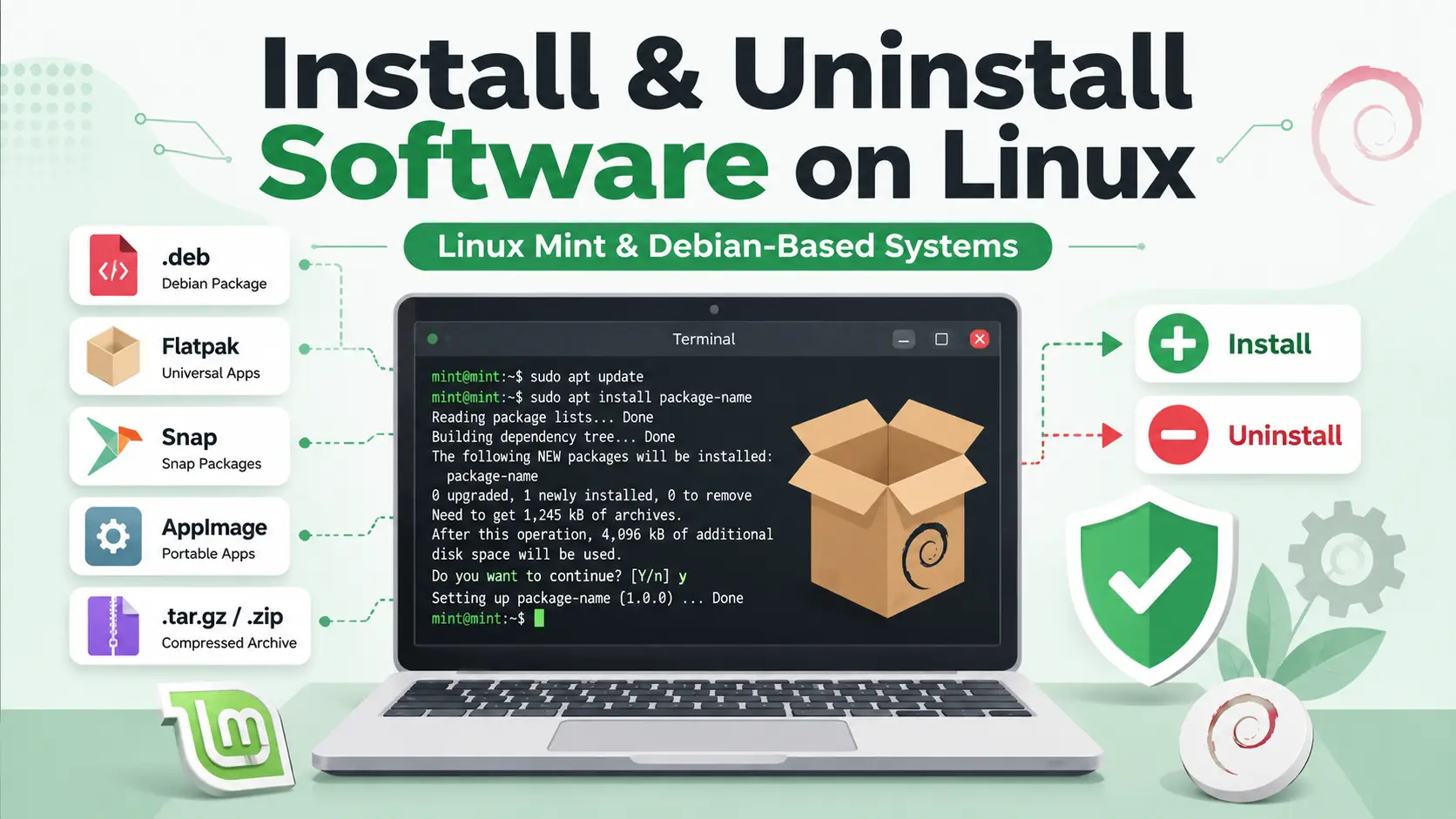
Installing software on Linux Mint, Ubuntu, Debian, and other Debian-based Linux distributions is usually simple. However, Linux applications are distributed in several formats, including APT packages, .deb files, Flatpaks, Snaps, AppImages, compressed archives, and source code.
Each format uses a different installation and removal method. For example, an AppImage is normally removed by deleting its file, while an application installed through APT should be removed with an APT command.
This guide explains how to safely install, update, identify, troubleshoot, and uninstall software on Linux Mint and other Debian-based operating systems. It is written for beginners but also includes useful commands for experienced Linux users.
Important Corrections to Common Linux Commands
Before starting, it is important to correct a few common misunderstandings about Linux software installation.
- A
.tar.gzfile is a compressed archive. It is not a Snap package. - An AppImage is normally a portable executable file. It is not managed by
aptordpkg. - To remove an AppImage, you normally delete the AppImage file and any optional shortcuts or settings it created.
- For a local
.debpackage,sudo apt install ./package.debis usually better thansudo dpkg -i package.debbecause APT can resolve dependencies. - You normally do not need
sudoto make an AppImage executable. apt purgeremoves package-managed configuration files, but it does not normally remove all personal settings from your home directory.
Choose the Correct Installation Method
The correct installation command depends on the software format.
| Software format | Install with | Remove with |
|---|---|---|
| Linux repository package | apt install | apt remove or apt purge |
.deb package | apt install ./file.deb | apt purge package-name |
| Flatpak | flatpak install | flatpak uninstall |
| Snap | snap install | snap remove |
| AppImage | Make executable and run | Delete the AppImage file |
.tar.gz or .tar.xz | Extract and follow its instructions | Depends on how it was installed |
.run, .bin, or installer script | Run the verified installer | Use the vendor-provided uninstaller |
| Source code | Compile using its build system | Use its uninstall target or installation record |
Which Method Should We Prefer?
When the same application is available in several formats, the following order is generally easier and safer to maintain:
- Linux Mint Software Manager or the official APT repositories
- The software developer’s official APT repository
- A verified Flatpak from a trusted publisher
- An official
.debpackage - An official AppImage or Snap package
- A precompiled archive supplied by the developer
- Compiling the application manually from source code
Software installed through a package manager is usually easier to update, repair, and remove. Manually installed applications give you more control, but Linux may not automatically know which files belong to them.
Considerable Security Checks Before Installing Software
Installing software means allowing code to run on your computer. A malicious installer may steal passwords, browser sessions, personal files, SSH keys, or other sensitive information.
Before installing software from outside the official Linux repositories, check the following:
- Download the file from the application’s official website or verified repository.
- Check that the website address is spelled correctly.
- Confirm that the package supports your Linux distribution and version.
- Confirm that it supports your computer’s processor architecture.
- Compare the downloaded file’s checksum with the checksum published by the developer.
- Verify the digital signature when the developer provides one.
- Read the installation instructions before running commands with
sudo. - Create a Timeshift snapshot before installing drivers, kernels, or other system-level software.
Check Your Linux Architecture
dpkg --print-architecture
uname -m
Common architecture names include:
amd64orx86_64for most modern Intel and AMD computersarm64oraarch64for 64-bit ARM devicesi386for older 32-bit computers
Verify a SHA-256 Checksum
sha256sum downloaded-file.debCompare the displayed value with the SHA-256 value published on the developer’s official website.
Security warning: Avoid blindly running commands such as
curl example.com/script.sh | sudo bash. Download the script, inspect it, and confirm that it comes from a trusted source before executing it.
Method 1: Install Software with Linux Mint Software Manager
Software Manager is the easiest option for most Linux Mint users. It provides a graphical interface for installing and removing applications.
- Open the Linux Mint application menu.
- Search for Software Manager.
- Open Software Manager and search for the application.
- Check whether the result is a system package or Flatpak.
- Review the description, publisher, source, and permissions.
- Click Install.
- Enter your password when requested.
To uninstall it later, open its page in Software Manager and click Remove.
Method 2: Install Software with APT
APT is the standard package-management system used by Debian, Ubuntu, Linux Mint, and many related distributions.
Update the Package List
sudo apt updateThis command downloads the latest package information from your configured repositories. It does not install all available updates.
Search for a Package
apt search application-nameExample:
apt search vlcView Package Information
apt show package-nameThis displays information such as the package version, download size, installed size, dependencies, description, and homepage.
Install the Package
sudo apt install package-nameExample:
sudo apt install vlcAlways review the list of packages that APT plans to install before confirming.
Reinstall a Package
sudo apt install --reinstall package-nameThis can help when an installed package has missing or damaged files.
Method 3: How do we Install a Local .deb File
A .deb file is a Debian package. Many developers provide .deb downloads for Debian, Ubuntu, and Linux Mint.
Inspect the Package
Display basic package information:
dpkg-deb --info package-name.debList the files stored inside the package:
dpkg-deb --contents package-name.debDisplay the internal package name:
dpkg-deb -f package-name.deb PackageRecommended Installation Command
Open the terminal in the directory containing the downloaded file:
cd ~/Downloads
sudo apt install ./package-name.deb
The ./ prefix tells APT that you are installing a local file.
You may also use the complete file path:
sudo apt install /home/username/Downloads/package-name.debAlternative dpkg Command
sudo dpkg -i package-name.debThe dpkg command installs the package directly, but it may not automatically install missing dependencies.
If you face dependency errors, run:
sudo apt --fix-broken install
sudo dpkg --configure -a
Method 4: Install Software from a Third-Party APT Repository
Some developers provide their own APT repositories. This allows the application to receive updates through your normal package-update system.
Adding a repository also gives that repository permission to provide software to your system. Therefore, only add repositories from trusted developers.
- Follow instructions from the developer’s official website.
- Confirm that the repository supports your Linux version.
- Avoid using the deprecated
apt-keymethod when modern keyring instructions are available. - Do not add repositories from random blogs or copied commands without checking them.
- Remove unused repositories when you no longer use their applications.
After adding a valid repository, applications are normally installed with:
sudo apt update
sudo apt install package-name
Method 5: Install and Remove Flatpak Applications
Flatpak is a cross-distribution application format commonly used for desktop software. Flatpak applications run with sandboxing and may request permission to access files, devices, or other system resources.
Check Whether Flatpak Is Installed
flatpak --versionInstall Flatpak when necessary:
sudo apt update
sudo apt install flatpak
Search for an Application
flatpak search application-nameHow to Install using Flatpak
flatpak install flathub application-idExample:
flatpak install flathub org.videolan.VLCGet the List of Installed Flatpak Applications
flatpak list --appUpdate Flatpak Applications
flatpak updateReview Application Permissions
flatpak info --show-permissions application-idHow to Uninstall using Flatpak
flatpak uninstall application-idTo remove the application together with its Flatpak-managed data:
flatpak uninstall --delete-data application-idRemove unused runtimes:
flatpak uninstall --unusedMethod 6: Install and Remove Snap Packages
Snap is another cross-distribution software format. Snap applications are managed by the snapd service.
Linux Mint disables Snap installation through APT by default. Enable it only when you intentionally want to use Snap packages.
Enable Snap on Linux Mint
sudo rm -f /etc/apt/preferences.d/nosnap.pref
sudo apt update
sudo apt install snapd
After installation, log out and log in again, or restart your computer if Snap applications do not appear immediately.
Search for a Snap Package
snap find application-nameInstall a Snap Package
sudo snap install snap-nameExample:
sudo snap install vlcList Installed Snaps
snap listUpdate Snap Packages
sudo snap refreshReview Snap Permissions
snap connections snap-nameRemove a Snap Package
sudo snap remove snap-nameTo remove it without creating an automatic Snap data snapshot:
sudo snap remove snap-name --purgeMethod 7: Run and Remove an AppImage
An AppImage is usually a portable application stored in one executable file. It normally does not need a traditional installation process.
Create a directory for AppImages:
mkdir -p ~/ApplicationsMove the downloaded file into that directory:
mv ~/Downloads/Application.AppImage ~/Applications/Make it executable:
chmod +x ~/Applications/Application.AppImageRun it:
~/Applications/Application.AppImageDo not normally run an AppImage with sudo. A desktop application rarely needs full administrative access.
Remove an AppImage
Close the application and delete the AppImage file:
rm ~/Applications/Application.AppImageIf the application created a menu shortcut, search for it:
find ~/.local/share/applications -iname '*application-name*.desktop' -printReview the result before deleting the exact shortcut file.
The application may also store settings under:
~/.config/~/.local/share/~/.cache/
Search for related files before deleting them:
find ~/.config ~/.local/share ~/.cache \
-maxdepth 2 -iname '*application-name*' -print
Method 8: Use a .tar.gz or .tar.xz Archive
A .tar.gz, .tgz, .tar.xz, or similar file is a compressed archive. It may contain source code, a ready-to-run application, an installer, or ordinary files.
There is no universal installation command for every compressed archive.
View the Archive Contents
tar -tf application.tar.gz | lessExtract the Archive
tar -xf application.tar.gzAlternatively, extract it into a dedicated directory:
mkdir extracted-application
tar -xf application.tar.gz -C extracted-application
Open the extracted directory and look for instructions:
cd extracted-application
ls -la
less README
less INSTALL
The documentation files may also be named README.md, INSTALL.md, or something application-specific.
Run a Precompiled Program
If the archive contains a ready-to-run program, its instructions may ask you to run:
chmod +x application-binary
./application-binary
To remove a portable application extracted from an archive, delete the directory where you extracted it, provided it did not install files elsewhere.
Method 9: Compile Software from Source Code
Advanced users may compile software from source code. The correct commands depend on the project’s build system.
The following is a common example for software that uses GNU Autotools:
sudo apt update
sudo apt install build-essential
tar -xf application.tar.gz
cd application-directory
./configure --prefix=/usr/local
make -j"$(nproc)"
make check
sudo make install
Do not run the normal compilation command with sudo. Administrative access is usually needed only for the final installation step.
Uninstall Software Installed with make install
Return to the original source and build directory. If the project provides an uninstall target, run:
sudo make uninstallNot every project supports this command. When no uninstall option exists, consult the project’s documentation or installation manifest.
Method 10: Use .run, .bin, or .sh Installers
Some proprietary applications and hardware tools are distributed as executable installer files.
First, verify the source and checksum. Then make the file executable:
chmod +x installer.runRun it as your normal user when possible:
./installer.runUse sudo only when the verified vendor instructions require administrative access:
sudo ./installer.runThere is no universal removal command for these installers. Check the installer’s help:
./installer.run --helpThe installer may provide an uninstall script, an application-menu option, or an argument such as --uninstall.
How to Identify How an Application Was Installed
Before uninstalling software, determine which package manager or installation method owns it.
Find the Application Command
command -v application-name
type -a application-name
Resolve a symbolic link to its actual path:
readlink -f "$(command -v application-name)"Check Whether a Debian Package Owns It
dpkg -S "$(readlink -f "$(command -v application-name)")"If a Debian package owns the file, remove the package through APT instead of deleting the file manually.
Search Installed APT Packages
apt list --installed 2>/dev/null | grep -i application-nameSearch Installed Flatpaks
flatpak list --app | grep -i application-nameSearch Installed Snaps
snap list | grep -i application-nameCheck Common Manual Installation Locations
ls -la /opt
ls -la /usr/local/bin
ls -la ~/Applications
ls -la ~/.local/bin
Remove or Purge an APT Package
Remove the Application but Keep Its Configuration
sudo apt remove package-nameRemove the Application and Package Configuration
sudo apt purge package-nameThe purge command removes configuration files managed by the Debian package. It does not normally remove your personal documents or all settings stored in your home directory.
Preview the Removal
apt -s purge package-nameThe -s option simulates the operation without changing the system.
Remove Unused Dependencies
sudo apt autoremove --purgeAlways review the proposed package list before confirming. Avoid automatically adding -y until you are sure that APT will not remove anything important.
Remove Remaining Application Data Safely
An application may leave settings, caches, logs, databases, or user profiles after the main package has been removed.
Common system-wide locations include:
/etc/application-name//var/lib/application-name//var/log/application-name//opt/application-name/
Common user-specific locations include:
~/.application-name/~/.config/application-name/~/.local/share/application-name/~/.cache/application-name/
Search for matching files before deleting anything:
find ~/.config ~/.local/share ~/.cache \
-maxdepth 2 -iname '*application-name*' -print
For system directories:
sudo find /etc /var/lib /var/log /opt \
-maxdepth 3 -iname '*application-name*' -print
Back up important data and delete only paths you have checked carefully.
Warning: The
rm -rfcommand permanently deletes files and directories. It does not move them to the desktop Trash. Never run it with an uncertain path or broad wildcard.
Remove an Unused Third-Party Repository
Removing an application does not always remove the repository that supplied it. An unused repository may later cause update errors or package conflicts.
Search the APT configuration for the developer’s name or domain:
grep -Ril "vendor-name-or-domain" \
/etc/apt/sources.list \
/etc/apt/sources.list.d/ 2>/dev/null
Review the results and remove only the exact .list or .sources file belonging to that repository.
After removing the repository, refresh APT:
sudo apt updateComplete Example: Remove AnyDesk Safely
The following example shows how to remove AnyDesk when it was installed as a Debian package.
Step 1: Identify the Installation Method
command -v anydesk
dpkg-query -W | grep -i anydesk
flatpak list --app | grep -i anydesk
snap list | grep -i anydesk
Step 2: Stop and Disable Its Service
sudo systemctl disable --now anydesk.serviceIf the service does not exist, systemd will display an error. You can continue with the correct removal method.
Step 3: Purge the Package
sudo apt purge anydeskStep 4: Remove Unused Dependencies
sudo apt autoremove --purgeStep 5: Find Its Repository
grep -Ril "anydesk" \
/etc/apt/sources.list \
/etc/apt/sources.list.d/ 2>/dev/null
Remove the exact AnyDesk repository file only after confirming that it belongs to AnyDesk. Then run:
sudo apt updateStep 6: Search for Remaining Data
sudo find /etc /var/lib /var/log \
-maxdepth 3 -iname '*anydesk*' -print

find ~/.config ~/.local/share ~/.cache ~ \
-maxdepth 2 -iname '*anydesk*' -print
When you have confirmed that the following directories belong to AnyDesk and you no longer need their contents, remove them carefully:
sudo rm -rf -- /etc/anydesk /var/lib/anydesk
rm -rf -- ~/.anydesk
Step 7: Verify the Removal
command -v anydesk || echo "AnyDesk command removed"

dpkg-query -W anydesk 2>/dev/null \
|| echo "AnyDesk package not installed"

systemctl status anydesk.service --no-pager
How to Verify That an Application Is Completely Removed
Run several checks because the same application may be installed in more than one format.
command -v application-name \
|| echo "Command not found"

type -a application-name

dpkg-query -W | grep -i application-name

flatpak list --app | grep -i application-name

snap list | grep -i application-name
If your terminal still remembers a removed command, clear the shell command cache:
hash -rCheck for remaining services:
systemctl list-unit-files | grep -i application-name

systemctl --user list-unit-files \
| grep -i application-name
Check whether any related process is still running:
pgrep -a -i application-nameTroubleshoot Failed APT Installations
Fix Broken Dependencies
sudo apt --fix-broken install
sudo dpkg --configure -a
sudo apt update
Check for Partially Installed Packages
sudo dpkg --auditCheck Available Package Versions
apt-cache policy package-nameCheck Available Disk Space
df -h
df -i
The first command checks storage space. The second checks available inodes, which can run out when a filesystem contains a very large number of files.
Handle an APT Lock Error
An APT lock error usually means that another package-management process is running.
ps aux | grep -E '[a]pt|[d]pkg'

sudo fuser /var/lib/dpkg/lock-frontend
Wait for Update Manager or the other package operation to finish.
Do not immediately delete APT or dpkg lock files. Removing a lock while another package process is active may damage the package database.
Useful Commands for Experienced Linux Users
List Files Installed by a Package
dpkg -L package-nameFind Which Package Owns a File
dpkg -S /path/to/fileDisplay Package Status
dpkg-query -s package-nameView APT Installation History
less /var/log/apt/history.log
less /var/log/dpkg.log
Clean Downloaded Package Files
Remove outdated cached packages:
sudo apt autocleanRemove all cached package archives:
sudo apt cleanThese commands remove downloaded package files. They do not uninstall applications.
Dangerous Commands and Practices to Avoid
- Do not run unverified internet scripts with
sudo. - Do not use
sudo chmod -R 777to solve permission problems. - Do not run normal desktop applications as root.
- Do not install unsigned packages with
--allow-unauthenticated. - Do not use
dpkg --force-allas a normal dependency fix. - Do not add random third-party repositories or PPAs.
- Do not manually delete files from
/usr/binwhen they belong to an installed package. - Do not delete APT lock files while another package process is running.
- Do not use
rm -rfwith an uncertain path, empty variable, or broad wildcard. - Do not mix repositories intended for different Debian or Ubuntu releases.
Quick Command Reference
| Task | Command |
|---|---|
| Refresh APT package information | sudo apt update |
| Install an APT package | sudo apt install package-name |
| Install a local Debian package | sudo apt install ./file.deb |
| Remove an APT package | sudo apt remove package-name |
| Purge an APT package | sudo apt purge package-name |
| Remove unused APT dependencies | sudo apt autoremove --purge |
| Install a Flatpak | flatpak install flathub application-id |
| Remove a Flatpak | flatpak uninstall application-id |
| Remove a Flatpak with its data | flatpak uninstall --delete-data application-id |
| Install a Snap | sudo snap install snap-name |
| Remove a Snap | sudo snap remove snap-name |
| Run an AppImage | chmod +x file.AppImage && ./file.AppImage |
| Remove an AppImage | Delete the exact AppImage file |
| Extract a compressed archive | tar -xf archive.tar.gz |
| Fix broken packages | sudo apt --fix-broken install |
Frequently Asked Questions
Is a .tar.gz file an installer?
Not necessarily. It is a compressed archive that may contain source code, a ready-to-run program, an installer, or ordinary files. Extract it and read its documentation before proceeding.
Should I use apt or dpkg to install a .deb file?
Use sudo apt install ./package.deb in most cases. APT can resolve dependencies, while dpkg -i may leave the package partially configured when dependencies are missing.
Can I uninstall an AppImage with apt or dpkg?
Normally, no. Delete the AppImage file and remove any optional menu shortcut or application-specific settings you no longer need.
What is the difference between apt remove and apt purge?
apt remove removes the package but keeps package-managed configuration files. apt purge also removes those package-managed configuration files. Neither command normally removes all personal settings from your home directory.
Should I always run apt autoremove?
You may use it to find dependencies that are no longer required. However, always review the package list before confirming the removal.
Why does a command still work after I removed the package?
The same application may also be installed as a Flatpak, Snap, AppImage, or manually copied executable. Use type -a application-name to find every matching command and run hash -r to clear your terminal’s command cache.
Is sudo required for every installation?
No. APT normally requires administrative access, but AppImages and many user-level applications can run without root privileges. Use only the permissions required for the task.
Final Recommendations
For most Linux Mint users, Software Manager and trusted APT repositories are the easiest and safest ways to install software. They provide automatic updates, dependency management, and predictable removal.
Before uninstalling an unfamiliar application, identify whether it was installed through APT, Flatpak, Snap, AppImage, a vendor installer, or a source-code build. Using the correct removal method helps prevent broken packages, abandoned services, obsolete repositories, and unwanted configuration files.
Most importantly, treat every installer as executable code. Verify its source, checksum, permissions, and commands before allowing it to run—especially before using sudo.