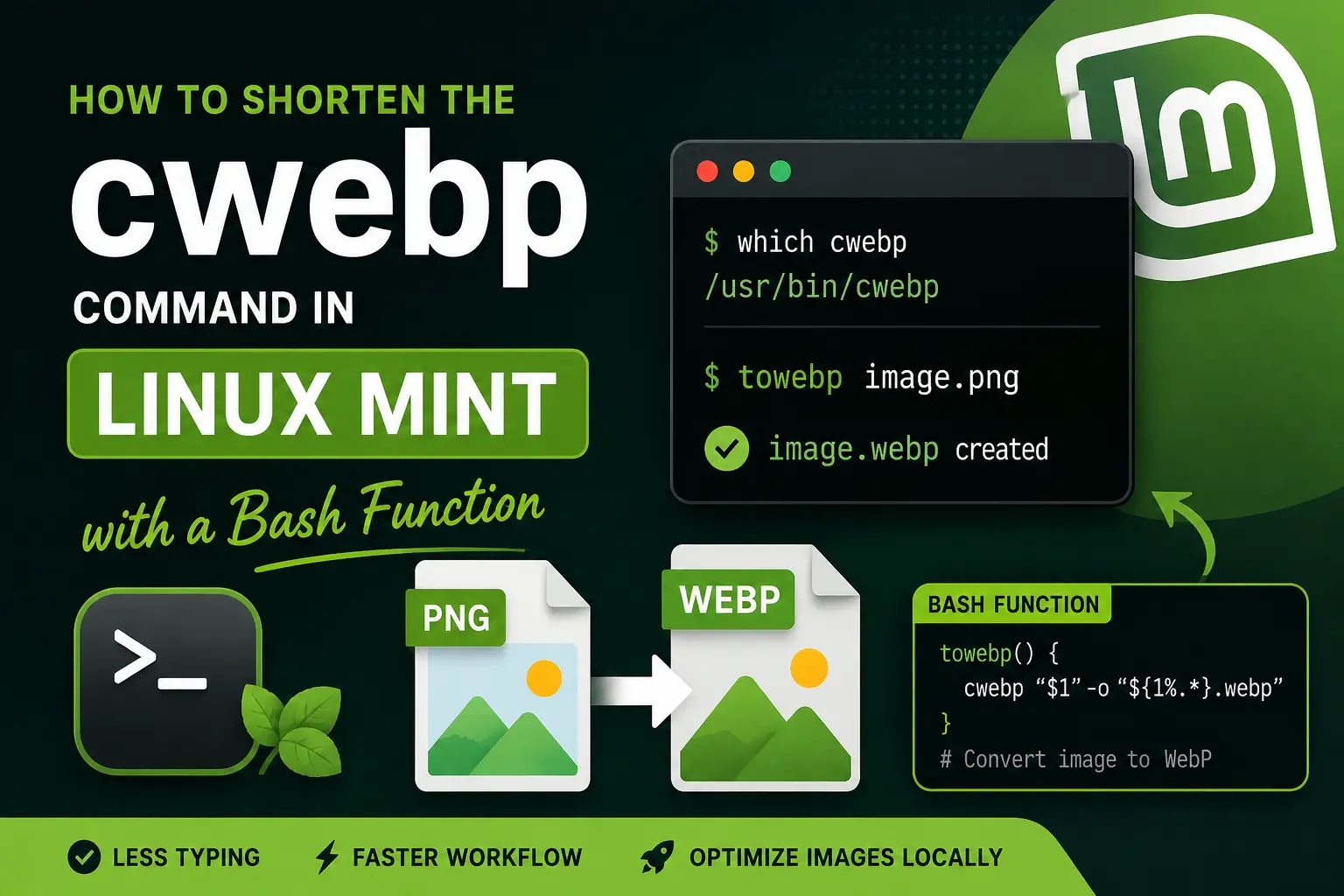
I usually optimize images locally before uploading them to the live servers for my websites. Since I use Linux Mint, one of my regular tools for this job is cwebp, which I run directly from the command line to convert PNG and JPG images to WebP.
My most-used command is simple:
cwebp image-name.png -o image-name.webp
It works well, but after using it again and again, I started looking for a way to avoid typing the same filename twice every time I converted an image. When filenames are long, that small repetition becomes even more annoying.
Because I already use the Linux terminal for this task, I wanted a solution that would stay simple and keep using cwebp rather than adding another application. I solved it by creating a small Bash function called towebp.
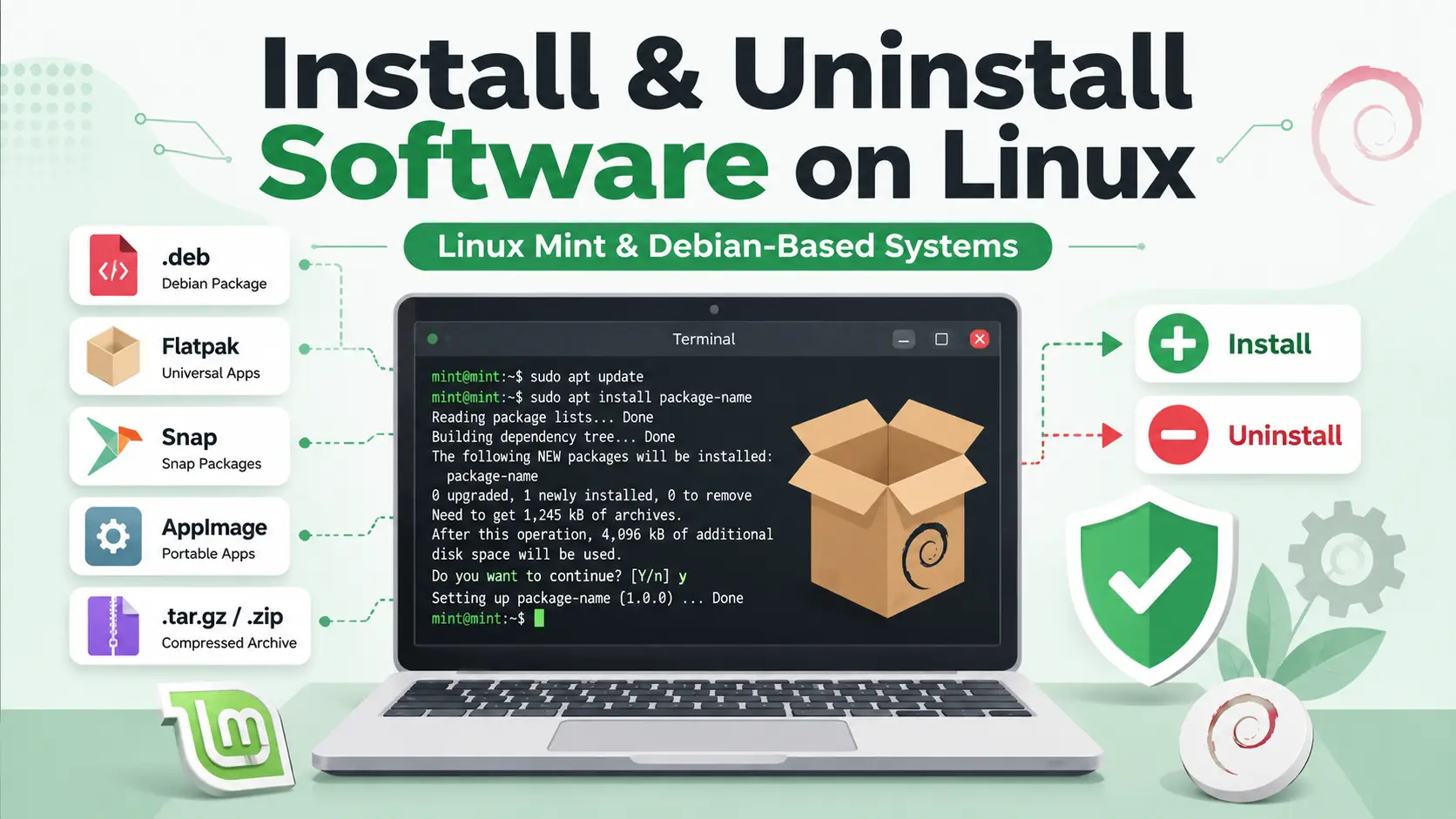
Installing software on Linux Mint, Ubuntu, Debian, and other Debian-based Linux distributions is usually simple. However, Linux applications are distributed in several formats, including APT packages, .deb files, Flatpaks, Snaps, AppImages, compressed archives, and source code.
Each format uses a different installation and removal method. For example, an AppImage is normally removed by deleting its file, while an application installed through APT should be removed with an APT command.
This guide explains how to safely install, update, identify, troubleshoot, and uninstall software on Linux Mint and other Debian-based operating systems. It is written for beginners but also includes useful commands for experienced Linux users.
Important Corrections to Common Linux Commands
Before starting, it is important to correct a few common misunderstandings about Linux software installation.
A .tar.gz file is a compressed archive. It is not a Snap package.
An AppImage is normally a portable executable file. It is not managed by apt or dpkg.
To remove an AppImage, you normally delete the AppImage file and any optional shortcuts or settings it created.
For a local .deb package, sudo apt install ./package.deb is usually better than sudo dpkg -i package.deb because APT can resolve dependencies.
You normally do not need sudo to make an AppImage executable.
apt purge removes package-managed configuration files, but it does not normally remove all personal settings from your home directory.